
Introduction
What are Objects?
Objects are 3D models and visual assets that can be used in your configurator products. Each object represents a physical item (furniture, accessories, components, etc.) that customers can view, customise, and include in their configurations.
Objects can have properties like price, color, material type, and can be linked to specific product configurators.
Getting Started
Understanding the Interface
The Objects page is divided into three main sections:
- Header Section – Page title, subtitle, and “Add New Object” button
- Objects Grid – Displays all objects with thumbnails
- Filter Panel – Located on the right side
Subscription Limits
Your subscription plan determines:
- Maximum number of objects allowed
- Total storage space for models and images
- Which objects are available for use (based on alphabetical order)
Objects beyond your subscription limit will appear disabled and cannot be edited or used until you upgrade.
Object Cards
Each object in your library is represented by a card. Understanding the card layout helps you work more efficiently.
Card Components
- Visual Area(Top section)
- Shows a preview image of your object
- If no image is uploaded, displays a 3D model preview
- If neither is available, shows a placeholder icon
- Contains a "3D" badge when a 3D model is available
- Name Area
- Displays object name
- Hover to view full name if truncated
- Action Menu (?)
- Located in the bottom right corner of each card
- Click to reveal Edit and Duplicate options

Card States
Active Objects
- Full color
- Fully interactive
- Can be viewed, edited, and duplicated
- These count toward your subscription limit
Disabled Objects
- Appear grayed out with reduced opacity
- Visible but not interactive
- Appear when you've reached your subscription limit
- Cannot be edited or viewed until you upgrade or free up space
Add New Object
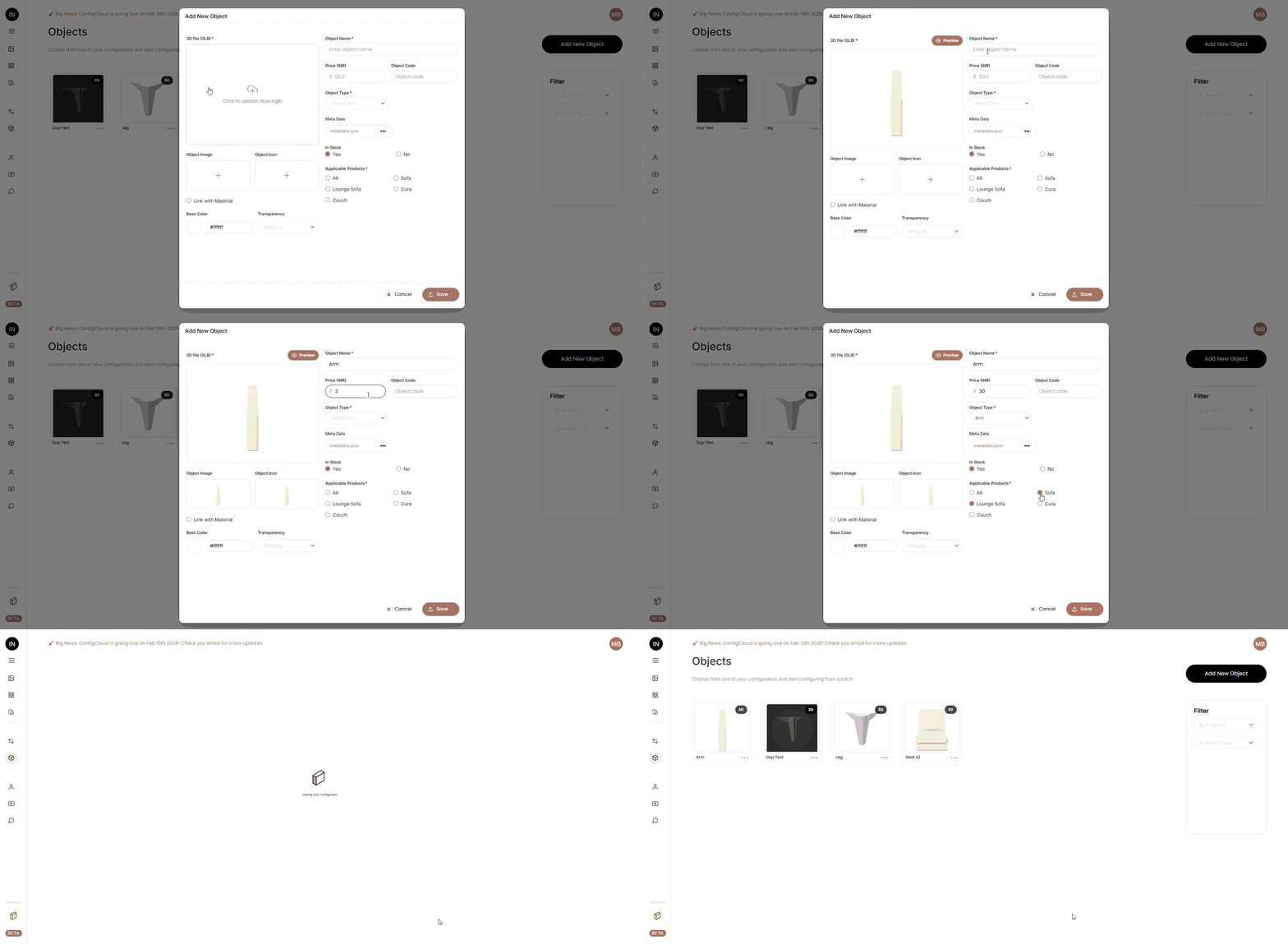
Step 1: Click "Add New Object"
Click the “Add New Object” button in the header section to open the object creation form.
Step 2: Upload the 3D Model
- Select and upload a GLB file from your computer
- Maximum file size: 10MB
- A live preview will appear once the file is uploaded
Step 3: Upload Images (Optional)
- Object Image – Main display image shown in the grid view
- Object Icon – Smaller icon used in certain views
When you upload a 3D model, the system automatically captures a screenshot to use as the default image and icon if no custom image is provided.
Step 4: Fill in Required Information
Complete all required fields marked with an asterisk (*).
Step 5: Fill in Optional Information
Add any additional fields that apply to your object such as pricing, object code, availability, or categorisation.
Step 6: Advanced Options (Optional)
- Base Color and Transparency
- Linking with Materials
- Meta Data
Step 7: Save
Click Save to create the object. The object will now appear in your Objects grid.
Edit an Object
How to Edit
Select "Edit Object" from the three-dot menu on the object card.

What You Can Edit
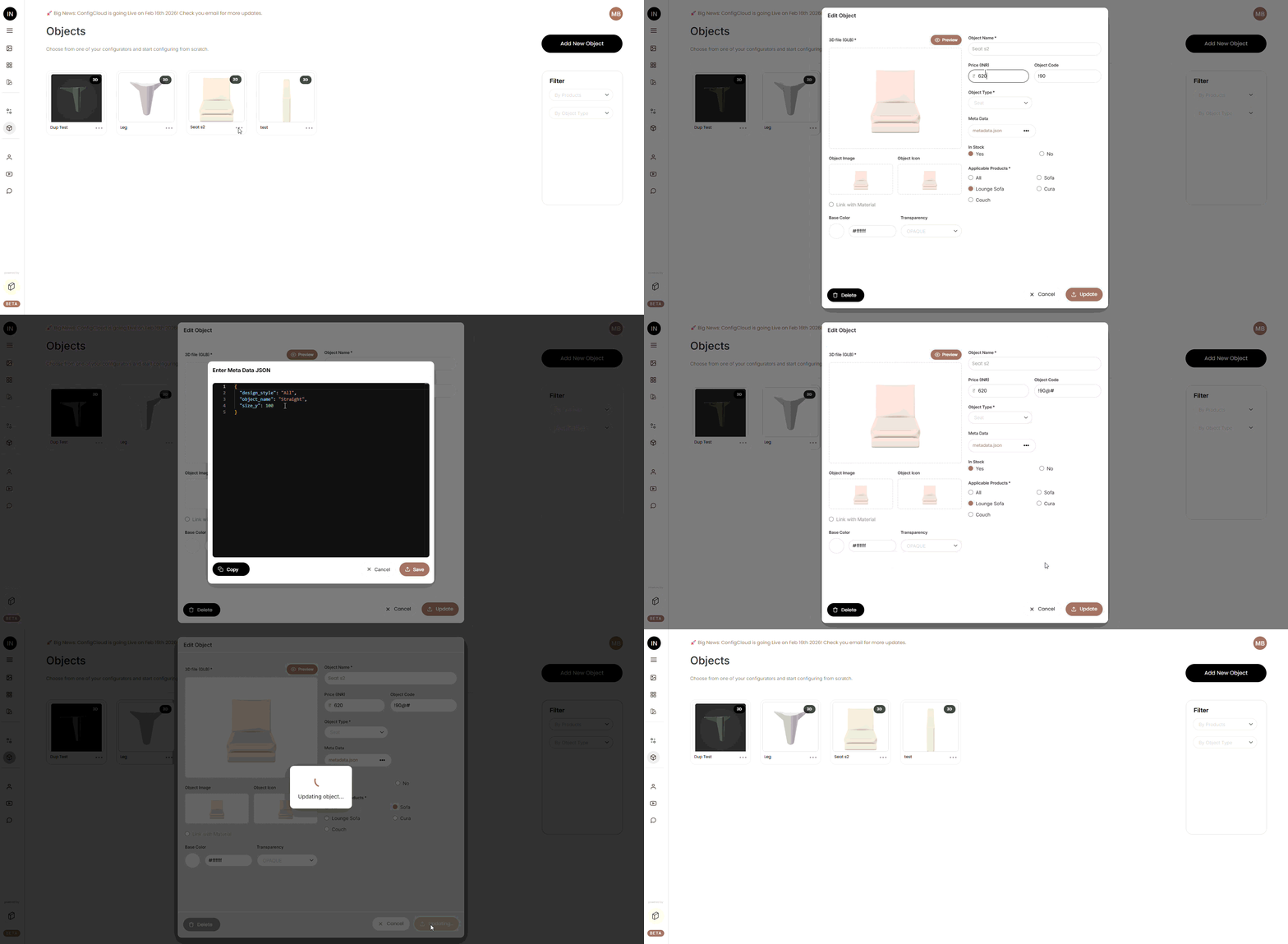
Cannot Be Changed
- Object Name – Permanently locked after creation
- Link with Material setting – Cannot be changed after creation
Can Be Changed
- 3D Model file – Upload a new GLB
- Object Image and Icon
- Price
- Object Code
- Object Type – If not linked with material
- Surface Types and Material – If linked with material
- Color and Transparency – If not linked with material
- In Stock status
- Applicable Products
- Meta Data
Duplicate an Object
Duplicating creates a copy of an existing object with a new name, allowing you to quickly create similar objects.
How to Duplicate
- Select "Duplicate Object" from the three-dot menu
- The duplicate form opens with all information pre-filled from the original

What Happens
- All properties are copied from the original
- The Object Name field is empty (you must provide a new unique name)
- All files (3D model, images) are copied
- You can modify any field before saving
When to Use Duplication
- Creating variations of the same object (different colors, sizes)
- Making similar objects with minor differences
- Saving time on data entry
Delete an Object
Warning
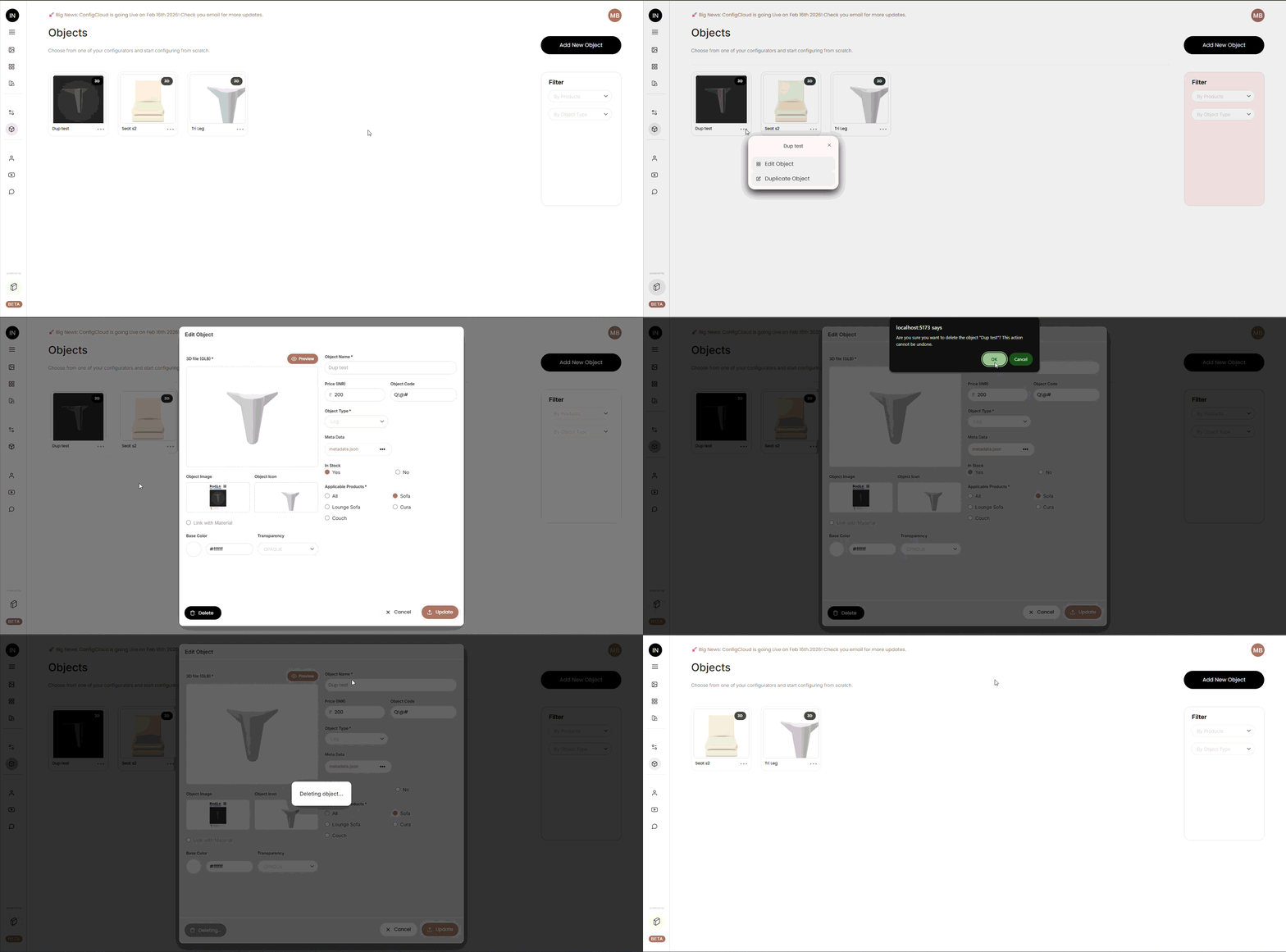
Deletion is permanent and cannot be undone.
- The object will be removed from all associated products
- All associated files (3D model and images) will be deleted from storage
- Any configurations using this object may be affected
What Gets Deleted
- Object database record
- 3D model file
- Object image and icon files
- All associated metadata
How to Delete
Select "Delete Object" from the three-dot menu and confirm the deletion in the popup.
Object Properties
Basic Information
Object Name
- Unique identifier for the object
- Cannot be changed after creation
- Used in configurator displays
Object Code
- Optional internal reference number
- Can include letters, numbers, or special characters
File Uploads
3D File (GLB) – Required
- Format: GLB (Binary GLTF) only
- Size Limit: 10MB maximum
Object Image – Optional but Recommended
- Formats: JPG, PNG
- Size Limit: 10MB
- Auto-generation: If only the 3D file is uploaded, the system captures a screenshot automatically
Object Icon – Optional
- Formats: JPG, PNG
- Size Limit: 10MB
- Auto-fill: If not provided, uses the Object Image
Pricing and Availability
In Stock Status
- Yes: Object is available for use in configurators
- No: Object is hidden from customer-facing views
Price Field
- Displayed with currency symbol (e.g., ?, $)
- Displayed in configurator totals
- Used for cost calculations
- Can be updated anytime
- Price changes affect new and existing configurations
Object Types and Categories
Object Type (Required if not linked with material)
- Predefined categories in your system
- Examples might include: Furniture, Accessories, Hardware
- Used for filtering and organization
- Helps users find objects quickly
Surface Type (When linked with material)
- Multiple types can be selected
- Determines which materials are compatible
- Examples: Wood, Metal, Fabric, Glass
- Used for material filtering
Advanced Features
3D Model Preview
The system includes an interactive 3D viewer for previewing objects before and after upload.
Accessing the Preview
Before Upload:
- After selecting a GLB file, click the "Preview" button
- The preview opens in a modal window
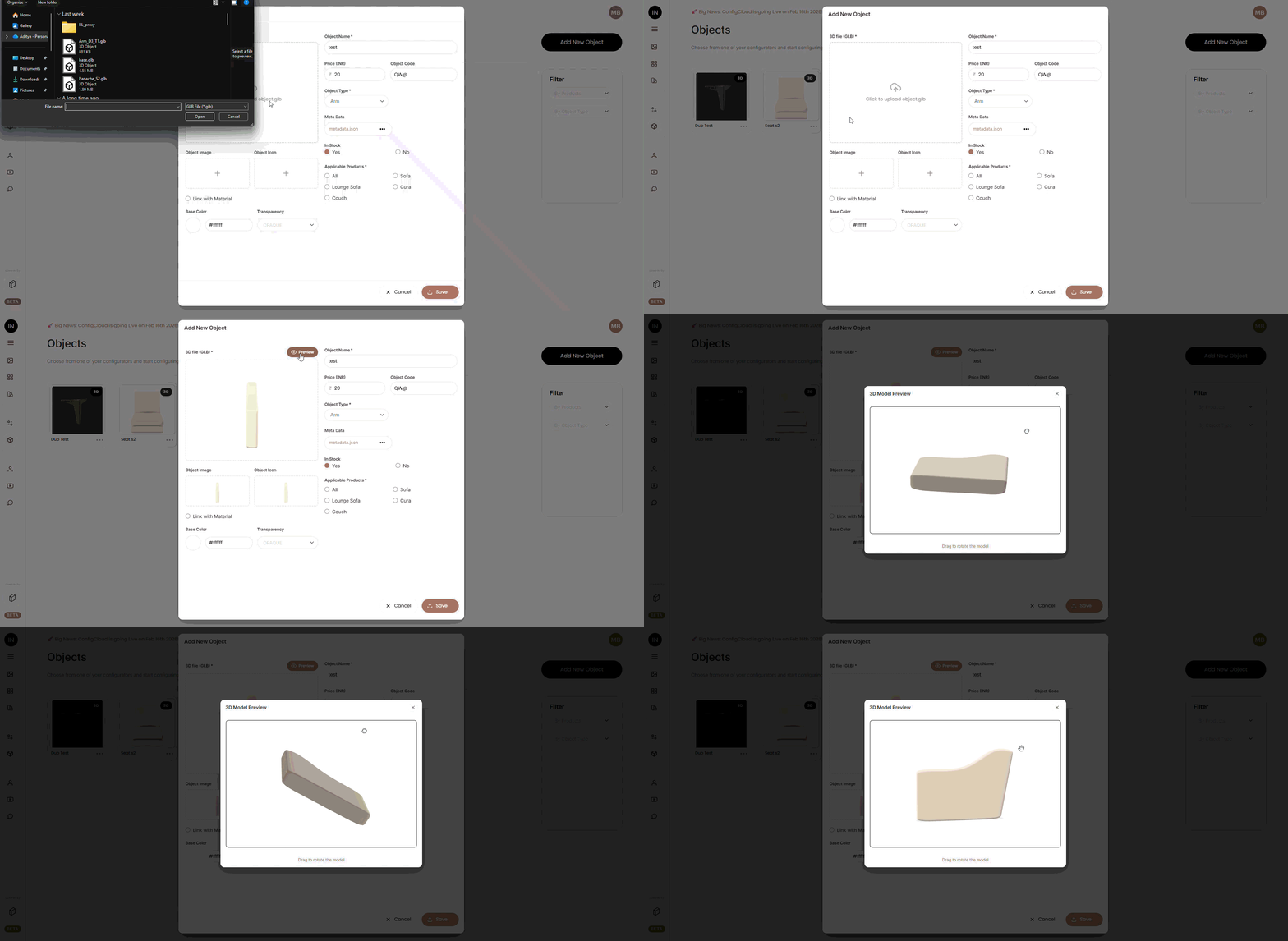
After Upload:
- Click on any object card's thumbnail
- The 3D viewer opens in full-screen mode
- Only available if a valid GLB file exists

Buttons
- Reset View – Returns to the default camera angle
- Close – Exits the 3D viewer
Features
- Professional lighting setup with shadows
- Smooth camera controls with damping
- Automatic zoom-to-fit on load
- High-quality rendering with anti-aliasing
Troubleshooting
- If the model appears black or doesn't load, the GLB file may be corrupted
- "No valid 3D model available" means the file is missing or invalid
- Models should include their own materials and textures
Linking Objects with Materials
This advanced feature allows objects to inherit properties from materials in your system.
When to Use
- Objects available in multiple materials (e.g., wood, metal, glass)
- When you want to centralize material properties
- When objects should match material selections
How to Link
- When adding or duplicating an object, check "Link with Material"
- This option cannot be changed after creation
- The form updates to show Surface Type and Material fields

What Changes
- Replaces: Base Color and Transparency fields
- Adds: Surface Type selection and Material dropdown
Important Notes
- Once linked with material, it cannot be unlinked
- Changing the material affects configurator appearance
- Material properties override object-level settings
Color and Transparency Settings
Available only when NOT linked with materials.
Base Color
- Click the color circle to open the color picker
- Or enter a hex code directly (e.g., #FF5733)
Color Picker Features
- Visual palette with preset colors
- Custom color input
- Hex code display
- Real-time preview

Transparency Options
- Opaque – No transparency (solid object)
- BLEND – Standard alpha blending
- ALPHA – Alpha channel transparency
When to Use Each
- Opaque – Most objects (wood, metal, plastics)
- BLEND – Semi-transparent materials (frosted glass)
- ALPHA – Texture-based transparency

Meta Data Management
Meta data allows you to store custom JSON information with each object.
What is Meta Data?
- Additional custom information beyond standard fields
- Stored in JSON format
- Can include any key-value pairs
- Useful for advanced integrations and custom features
Accessing Meta Data
- In the add/edit form, locate the "Meta Data" section
- Click the three-dot button (•••) next to "metadata.json"
- A JSON editor modal opens
Using the JSON Editor
Features
- Syntax highlighting
- Auto-formatting
- Copy to clipboard button
- Validation on save
Adding Meta Data
- Enter valid JSON in the editor
Editing Meta Data
- Open the JSON editor
- Modify the existing JSON
- Click "Save" to update
- Click "Cancel" to discard changes
Copying Meta Data
- Use the "Copy" button to copy the entire JSON
- Paste into a text editor or another object
- Useful for maintaining consistency across objects
Validation
- The editor checks for valid JSON syntax
- Invalid JSON will display an error message
- Fix syntax errors before saving

Configurator Integration
Every object must be assigned to at least one product configurator.

What Are Applicable Products?
- Product configurators that can use this object
- Each checkbox represents a different product/configurator
Product Selection
Option 1: Select All
- Check the "All" checkbox
- Selects every available product
- Object becomes available in all configurators
Option 2: Select Specific Products
- Leave "All" unchecked
- Select individual product checkboxes
- Object appears only in selected configurators
Validation
- At least one product must be selected
Changing Products Later
- Edit the object
- Check or uncheck products as needed
- Objects may disappear from configurators if their associated products are unchecked
Configurator Integration
Applicable Products
Every object must be assigned to at least one product configurator.
What Are Applicable Products?
- Product configurators that can use this object
- Each checkbox represents a different product/configurator
Product Selection
Selecting Products
Option 1: Select All
- Check the "All" checkbox
- This selects every available product
- Object becomes available in all configurators
Option 2: Select Specific Products
- Leave "All" unchecked
- Check individual product checkboxes
- Object appears only in selected configurators
Validation
- At least one product must be selected
Changing Products Later
- Edit the object
- Check or uncheck products as needed
- Objects may disappear from configurators if you uncheck their products
Filtering & Organization
Using Filters
The filter panel on the right side helps you find objects quickly.

Filter Options
- Filter by Products
- Filter by Object Type
Combining Filters
- Both filters can be used together
- Results show objects matching ALL selected filters
- Example: "Kitchen Designer" + "Cabinets" shows only cabinets for kitchens
Clearing Filters
- Set both dropdowns to "All"
- The grid returns to showing all objects
Need Help?
If you need assistance with managing objects, uploading models, or understanding advanced features, please contact the support team.